The shared inbox: reply, assign and keep track
9 min read
The inbox is where your team lives. Every WhatsApp conversation — and every web-chat conversation — lands in the same list, so several people can answer from one number without tripping over each other.
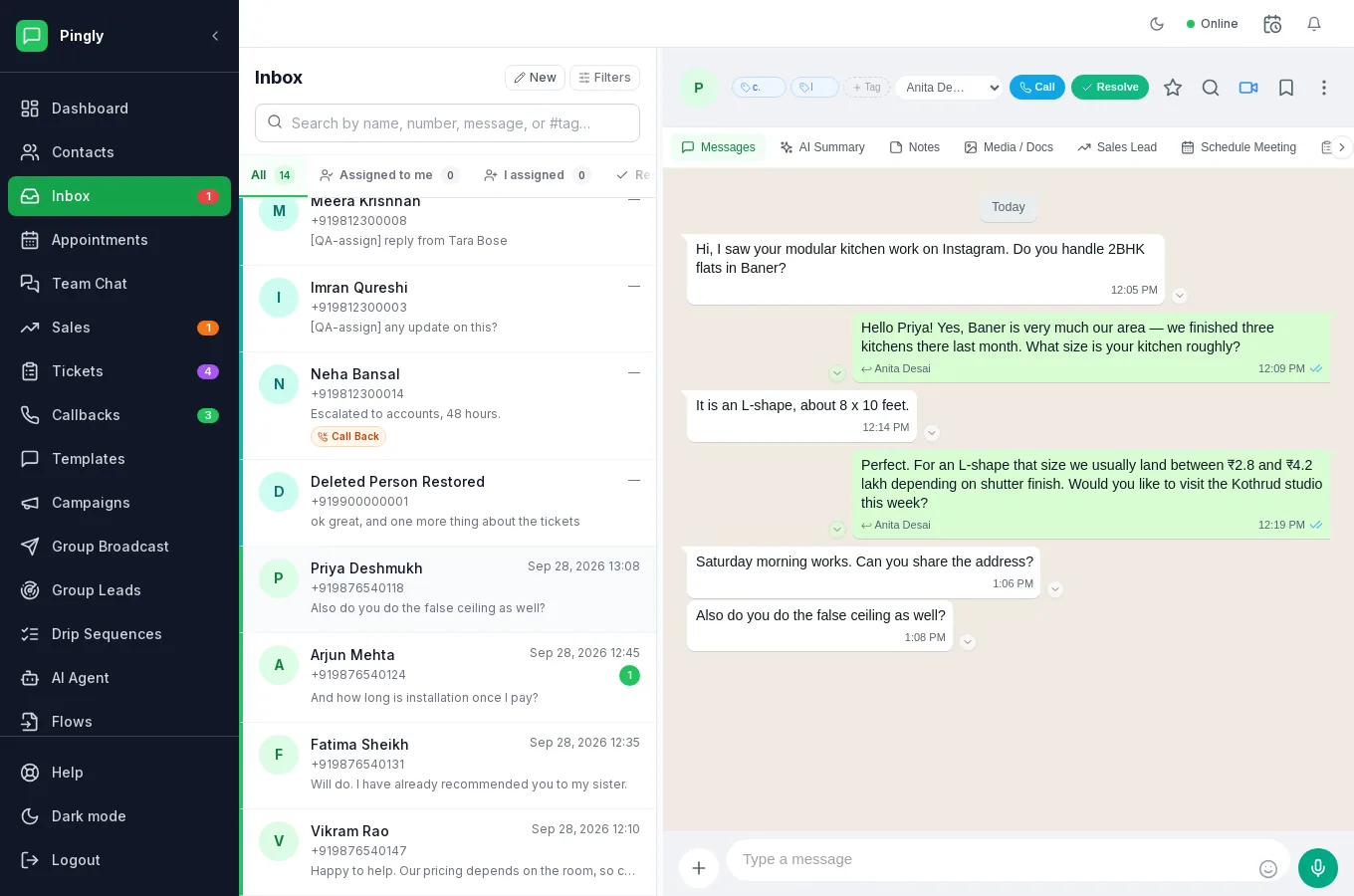
How the screen is laid out
- Left: the conversation list, with a search box and the filter tabs.
- Middle: the open conversation and the reply box.
- Right: the contact panel — their details, notes, media, tickets and leads.
Finding the right conversation
The tabs above the list are filters, and each shows a count so you can see at a glance where the work is:
| Tab | Shows |
|---|---|
| All | Every open conversation in the workspace. |
| Assigned to me | Conversations you are responsible for. This is the one most agents live in. |
| I assigned | Conversations you handed to somebody else — useful for chasing. |
| Resolved | Closed conversations. They reopen automatically if the customer writes again. |
| Sales | Conversations with a lead attached. |
| Tickets | Conversations with an open support ticket. |
| Groups | WhatsApp group chats, kept out of the main list so they do not drown it. |
| Star | Conversations you bookmarked. Starring does not hide it from the other tabs. |
| Mute | Muted conversations, hidden from the main list until you look here. |
| Unread | Anything nobody has opened yet. |
The search box matches on name, number, message text and tags — type #vip to find every conversation whose contact carries that tag.
Assigning a conversation
Assignment is what stops two people answering the same customer. Open a conversation and use Assign to... in its header.
- Pick the personThey see it immediately under Assigned to me, and the conversation shows who owns it.
- Use Unassign to put it backIt returns to Unassigned for anyone to pick up.
- Or let routing do itRules can assign by keyword, by number or in rotation, so nobody has to triage by hand. See Routing rules.
Replying
Type in the reply box and press Enter. Alongside plain text you can:
- Attach a file — image, video, audio or document.
- Insert a quick reply — type
/followed by its keyword, for example/address. See Quick replies. - Send an approved template — required once the 24-hour window has closed, and the place you fill in the variables.
- Send a form — a published Flow, on Meta Cloud API conversations.
- Create a poll, share a location, or forward messages to another chat.
Where a workspace has more than one connected number, Send from in the reply box picks which one the message goes out on.
Notes, stars and pins
Internal notes
The Internal Notes tab in the contact panel is for your team only — the customer never sees it. Use it for the context that should not be in the thread: what was agreed on a call, who the decision-maker is, why a discount was given.
Starring a message
Hover any message and click the star to bookmark it. Starred messages are collected in one place, which is the quickest way to keep hold of an address or an order number in a long thread.
Pinning
Pinning puts a message at the top of the chat for everyone, for 24 hours, 7 days, 30 days or 90 days. You can unpin at any time. Pins made from the WhatsApp app on a connected number show here too.
Working alongside the AI agent
If you use the AI agent, two controls in the conversation header decide who is answering:
- Take over — you are answering now, and the AI stops replying in this conversation.
- Hand to AI — give it back. Simply replying also counts as taking over, so the AI never talks over you.
Turning a conversation into something trackable
From the contact panel you can, without leaving the chat:
- Raise a ticket with a priority and an owner — see Tickets.
- Create a lead and put it on the pipeline — see Sales.
- Log a callback so somebody rings them back — see Callbacks.
- Book an appointment — see Appointments.
Each of these stays linked to the conversation, so the next person to open the chat can see what already happened.
Resolving
Mark a conversation resolved when it is done. It leaves the main list, lands under Resolved, and the time it took is counted in your performance reporting. If the customer writes again it comes straight back — resolving is not the same as blocking, and nothing is lost.
More in Everyday use
- Contacts: import, organise and segmentImporting, tagging, custom fields, and what happens when someone opts out.
- Quick replies and labelsCanned answers your whole team shares, plus labels for finding chats again.
- Tickets: turn a conversation into tracked workRaising, assigning and resolving tickets without leaving the conversation.
- Callbacks: never lose a call-me-backCapturing call-back requests and working through the queue.