Tickets: turn a conversation into tracked work
6 min read
Some conversations are a question you answer in a minute. Others are a problem that outlives the chat — a refund, a replacement, something a supplier has to confirm. A ticket is how the second kind stops depending on one person remembering.
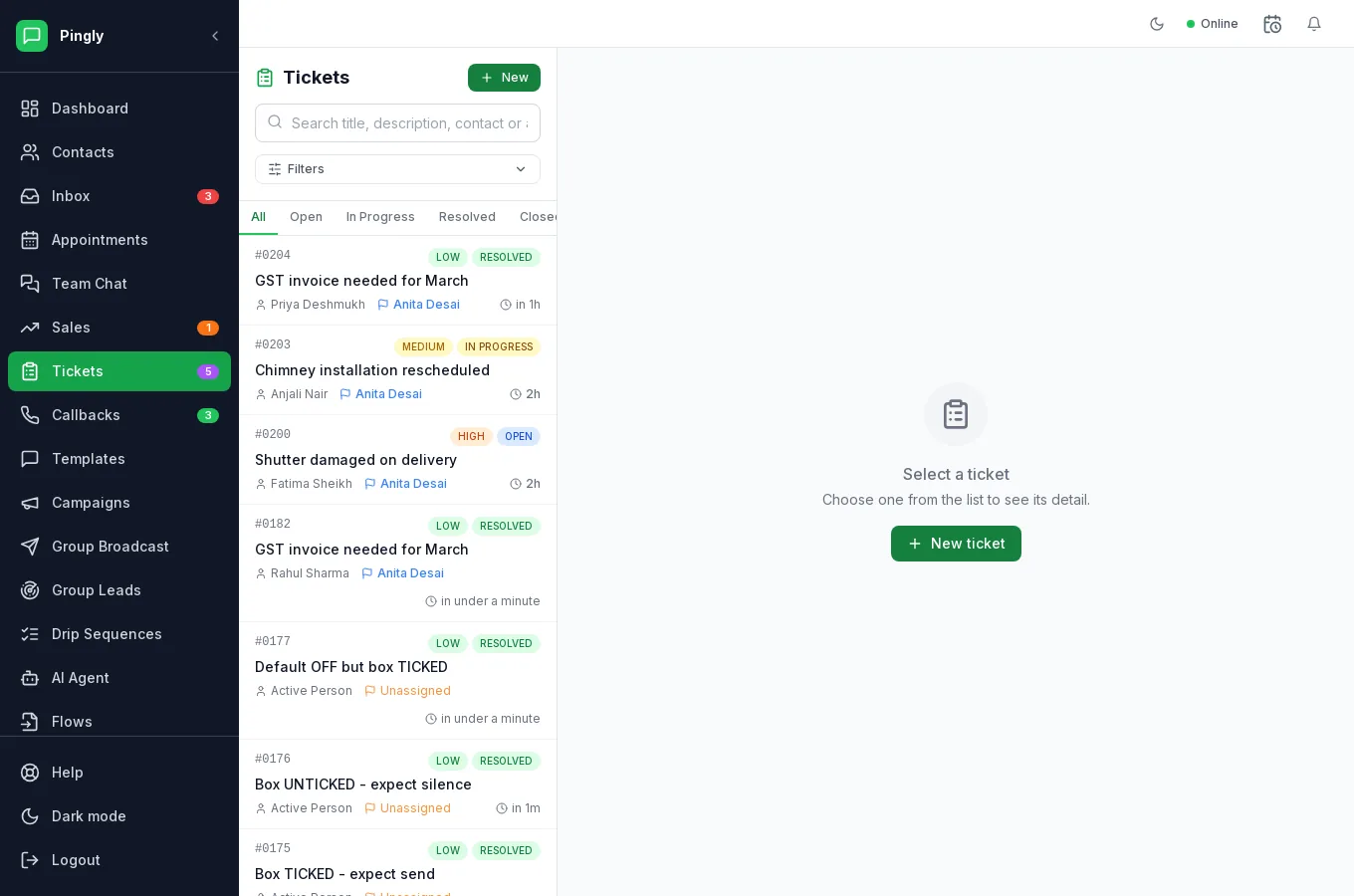
Raising one
Tickets are raised from the conversation, in the contact panel on the right of the inbox. That keeps the ticket attached to the chat it came from, so whoever picks it up can read what was actually said.
- Open the conversation and create a ticketGive it a title that describes the problem, not the customer — “Damaged shutter on delivery”, not “Priya issue”.
- Set a priorityBe sparing with the top one. If everything is urgent, the field stops carrying information.
- Assign an ownerAn unassigned ticket is a ticket nobody is working on.
- Resolve it with a resolution noteSay what was actually done. That note is what makes the next identical ticket quick.
Following them
- The Tickets screen lists everything open, filterable by status, priority and owner.
- The Tickets tab in the inbox shows only conversations with an open ticket.
- A conversation’s own panel shows its tickets, including closed ones — useful when somebody comes back about the same thing.
What it gives you
| Figure | Why it is worth watching |
|---|---|
| Open by priority | Whether the queue is under control right now. |
| Time to resolution | Whether it is getting better or worse over weeks. |
| Tickets per owner | Whether the work is spread sensibly. |
| Repeat subjects | The strongest signal of all — the same ticket ten times is a product or process problem, not a support one. |
These appear in Analytics and performance.
More in Everyday use
- The shared inbox: reply, assign and keep trackAssignment, replies, media, private notes and the 24-hour window, explained.
- Contacts: import, organise and segmentImporting, tagging, custom fields, and what happens when someone opts out.
- Quick replies and labelsCanned answers your whole team shares, plus labels for finding chats again.
- Callbacks: never lose a call-me-backCapturing call-back requests and working through the queue.