Contacts: import, organise and segment
7 min read
Contacts are the people you talk to. Anyone who messages you is added automatically — you only need to import when you want to start the conversation rather than wait for it.
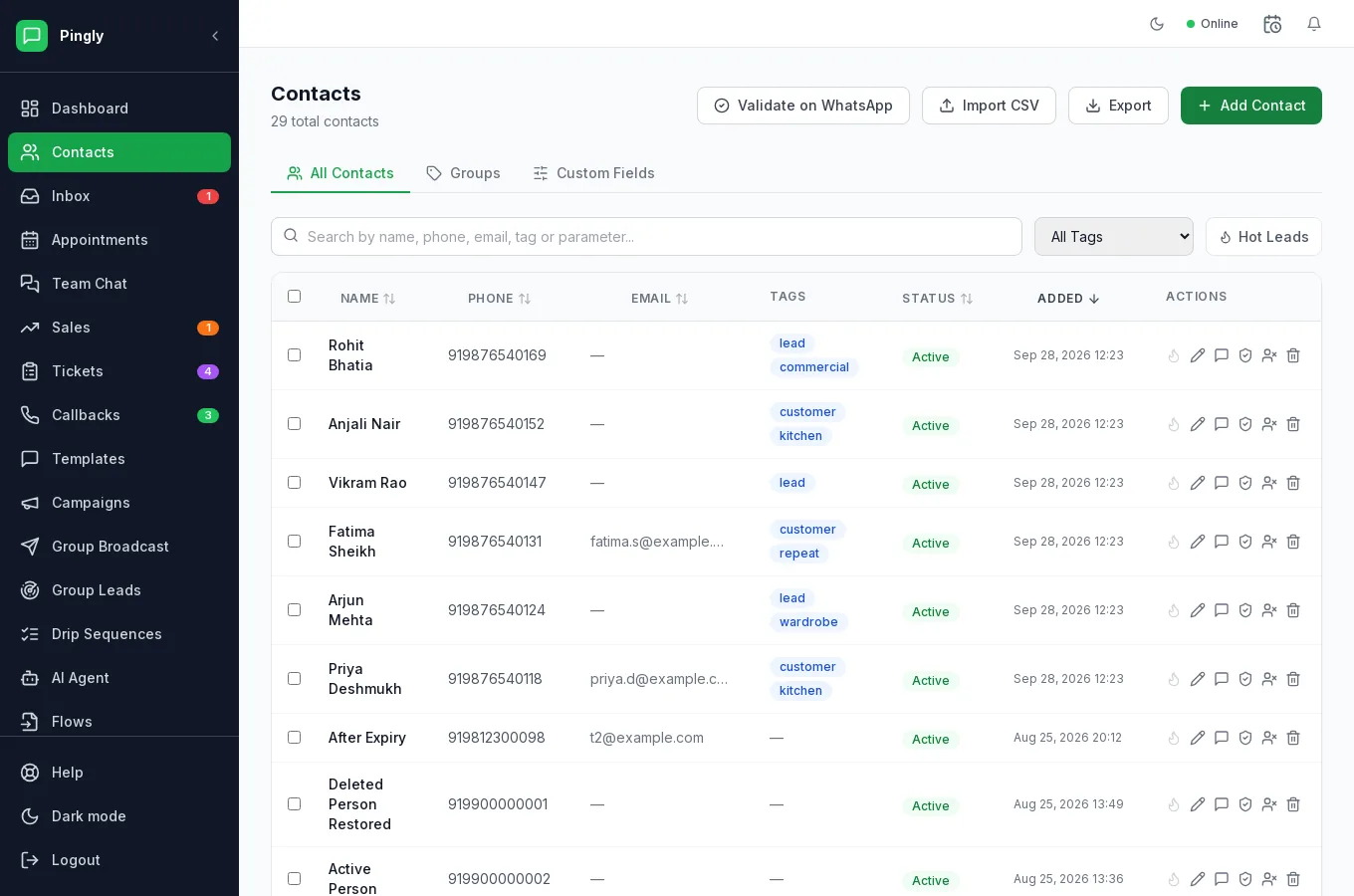
What is on the screen
- All Contacts — the full list, searchable and filterable by tag.
- Groups — saved collections of contacts you send to repeatedly.
- Custom Fields — the extra fields you have defined, such as
cityorplan.
Importing from a spreadsheet
- Prepare the fileA CSV or Excel file with one row per person. A phone column is the only hard requirement.
- Put the country code on every number
919876543210, not9876543210. A number without a country code cannot be delivered to, and this is the commonest reason an import looks fine and the campaign does not. - Map your columnsName, phone and email map to built-in fields. Any other column can be mapped to a custom attribute, which you can then use as a template variable.
- Tag the batchGive the whole import a tag such as
oct-webinar. This is how you will select them for a campaign later, and adding tags afterwards is far more work than doing it now.
Tags, groups and custom fields
| What it is | Use it when | |
|---|---|---|
| Tag | A label on a contact. A contact can have many. | You want to segment — customer, lead, VIP, which product they bought. |
| Group | A named, saved set of contacts. | You send to the same list again and again. |
| Custom field | A named value stored on each contact. | You need the value itself inside a message — a city, a renewal date, an order number. |
The practical difference: a tag answers who to send to, a custom field answers what to say to them.
Opt-outs
A contact marked opted out is excluded from every campaign and every drip sequence automatically. You can still reply to them in the inbox if they write to you — opting out stops you contacting them, it does not stop them contacting you.
Contacts from somewhere else
- Google Sheets — keep a sheet in sync with your contact list. See Integrations.
- Zoho CRM — two-way sync with your CRM records.
- The API — create and update contacts from your own systems. See Developer API.
- Your phone’s address book — when you connect a number by QR code, the contacts and chat history it already has come across at pairing.
More in Everyday use
- The shared inbox: reply, assign and keep trackAssignment, replies, media, private notes and the 24-hour window, explained.
- Quick replies and labelsCanned answers your whole team shares, plus labels for finding chats again.
- Tickets: turn a conversation into tracked workRaising, assigning and resolving tickets without leaving the conversation.
- Callbacks: never lose a call-me-backCapturing call-back requests and working through the queue.