Quick replies and labels
4 min read
Most of what a support team types, it has typed before. Quick replies turn those answers into one keystroke; labels make a conversation findable later.
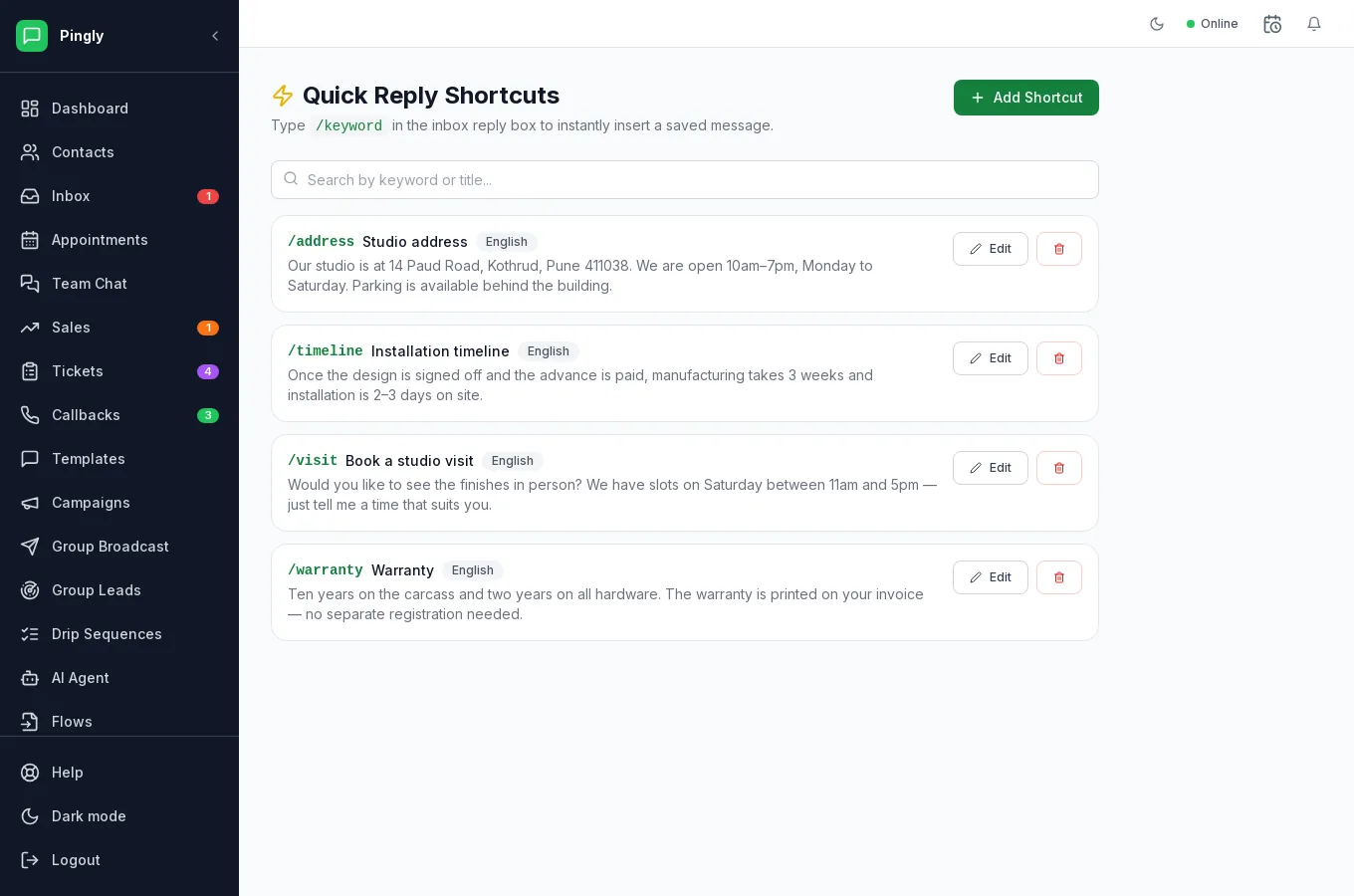
Quick replies
A quick reply is a saved message with a keyword. In the inbox, type / followed by the keyword and the full text drops into the reply box, where you can edit it before sending.
- Open Quick Replies and add oneGive it a title (what you will recognise it by), a keyword (what you will type), and the message itself.
- Choose a keyword you would actually guess
/address,/hours,/warranty. If you have to look it up, it is slower than typing the answer. - Search rather than scrollThere is a search box over keyword and title. Once you have more than a dozen, that is how you will find them — so make titles say what the answer is about.
Labels
Labels mark a conversation so you can find it again — refund, vip, escalated, waiting on supplier. Manage the list under Settings → Labels and apply them from the conversation itself.
- A conversation can carry several labels.
- They are searchable from the inbox, so
#refundfinds every one. - They can drive routing, sending labelled chats to a particular person or team.
More in Everyday use
- The shared inbox: reply, assign and keep trackAssignment, replies, media, private notes and the 24-hour window, explained.
- Contacts: import, organise and segmentImporting, tagging, custom fields, and what happens when someone opts out.
- Tickets: turn a conversation into tracked workRaising, assigning and resolving tickets without leaving the conversation.
- Callbacks: never lose a call-me-backCapturing call-back requests and working through the queue.