Getting started: your first 15 minutes in Pingly
6 min read
Pingly puts every WhatsApp conversation your business has into one shared inbox, so a team can answer together instead of passing a phone around — and then lets you message people at scale without leaving that inbox. This is the shortest path from an empty account to your first reply.
What Pingly actually does
Three things, and it helps to know which one you are here for:
- A shared inbox. One WhatsApp number, many agents. Chats get assigned, nothing is answered twice, and nothing is missed when somebody is on leave.
- Outbound at scale. Approved templates sent as campaigns, drip sequences and group broadcasts, with pacing that keeps a number healthy.
- A record. Contacts, leads, tickets, consent and an audit trail — so the conversation is not the only place the information lives.
Create your account
Signing up is a WhatsApp number and a code — there is no long form, and no email address is required to start.
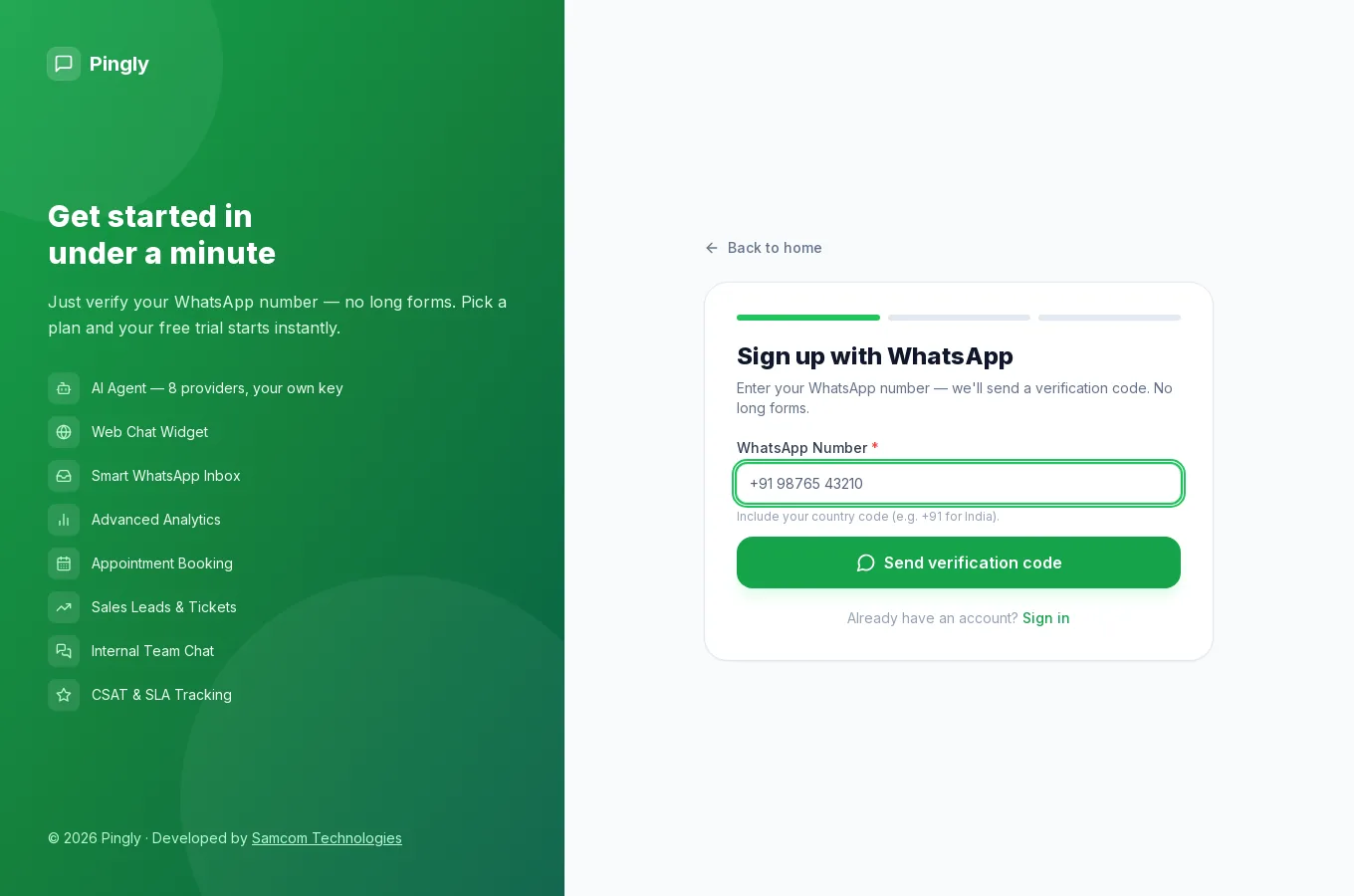
- Enter your WhatsApp numberGo to pingly.in/signup and choose Sign up with WhatsApp. Include the country code, for example
+91 98765 43210. This number is how you will sign in, so use one you will keep. - Enter the six-digit codeWe send a code to that number on WhatsApp. If it does not arrive within a minute, use Resend code — codes are single-use and the previous one stops working.
- Create a passwordAt least 8 characters. You will use your number and this password to sign in from then on.
- Pick a plan to start the trialEvery plan starts with a 14-day free trial and no card. What you choose decides two things: how many people, contacts and messages you get, and which features are switched on — the AI agent, analytics, the website widget, the developer API and Flows are each on some plans and not others. You can change plan at any time from Billing, so pick the closest fit rather than agonising. The plan comparison is read live from Pingly, so it is always current.
Connect a WhatsApp number
This is the one step nothing else works without: until a number is connected there is no inbox to read and nothing to send from. Pingly supports three ways to connect, and the right one depends on whether you want a number customers already know, or a clean API number.
| Option | Best when | Trade-off |
|---|---|---|
| Meta Cloud API | You want the official API, green tick eligibility and high volume. | Templates need Meta approval, and Meta bills you per conversation. |
| WhatsApp Direct (QR code) | You already use a normal WhatsApp number and want it as-is, today. | No templates and no green tick; it behaves like a phone, so volume must be paced. |
| Gupshup | You already buy WhatsApp through Gupshup and want to keep that account. | You manage the number and its billing in Gupshup, not here. |
The full steps for each are in Connect a WhatsApp number. If you are unsure, WhatsApp Direct is the fastest way to see Pingly working with your real conversations — you can add a Cloud API number later and run both.
Bring your contacts in
You do not have to import anything: anyone who messages you becomes a contact automatically. Import when you want to start a conversation rather than wait for one.
- Open Contacts and choose ImportA CSV with a phone column is enough. Include the country code on every number.
- Map your columnsName, phone and email map to built-in fields. Anything else becomes a custom attribute you can use as a template variable later.
- Tag the batch as you importGive the import a tag such as
oct-webinar. Tags are how you build a campaign audience afterwards, and adding them later is far more work.
More detail, including opt-outs and custom fields, in Contacts.
Invite your team
Add people from Settings → Team. Each person gets a role, and — separately — the individual screens they can open. The two are not the same thing, and the second is the one that catches people out: a manager with no Inbox grant cannot open a chat.
See Invite your team and set access.
Send your first message
Once a number is connected, open Inbox. Message your own phone from another device and the conversation will appear within a second or two — that round trip is the quickest proof that everything is wired up.
Where to go next
- Answering customers — the shared inbox, then quick replies.
- Reaching customers — templates first, then campaigns. In that order: a campaign cannot go out without an approved template.
- Doing less by hand — the AI agent and drip sequences.