Invite your team and control what each person sees
5 min read
Access in Pingly is two settings, not one: a role, which sets the broad shape of what somebody can do, and a per-person grant for six particular screens. Knowing that the second exists saves most of the confusion people hit here.
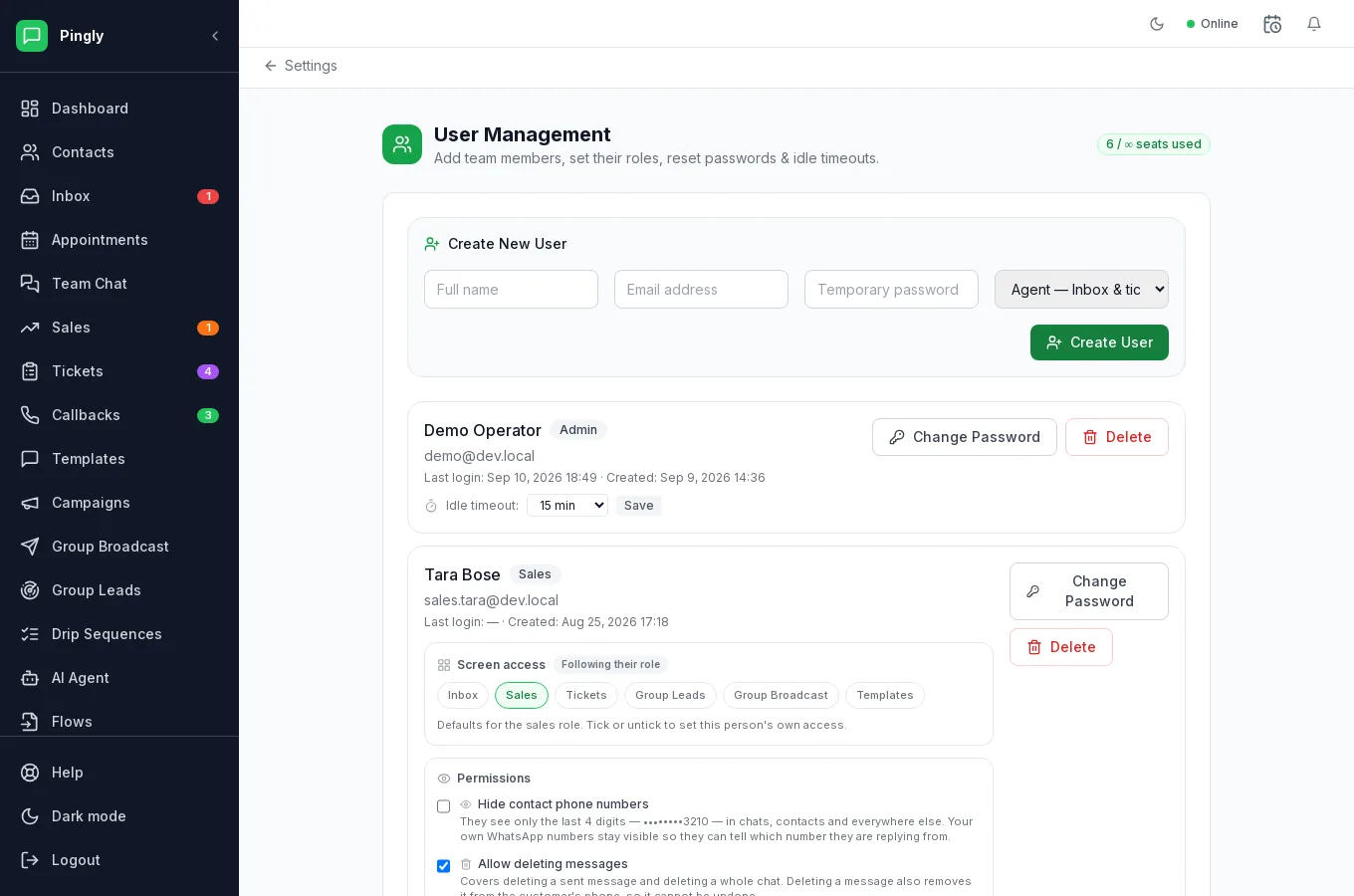
Adding someone
- Open Settings and then TeamOnly admins can manage users. Use Create New User.
- Fill in their details and pick a roleFull name, email address and a temporary password, then the role — described below.
- Grant the screens they needSet these deliberately rather than assuming the role covers it — this is the step that gets missed.
The roles
| Role | What it is for |
|---|---|
| Admin | Everything, including settings, billing and team management. The workspace owner is an admin and cannot be removed. |
| Manager | Campaigns, contacts and templates — the outbound side. No inbox by default. |
| Agent | The inbox and tickets — the inbound side. This is the role most of a support team should have. |
| Sales | The leads pipeline and follow-ups. |
Per-person screen access
Six screens can be granted or withheld per person, regardless of their role:
- Inbox — read and reply to WhatsApp chats
- Sales — leads pipeline and follow-ups
- Tickets — support tickets and notes
- Group Leads — leads captured from WhatsApp groups
- Group Broadcast — send to WhatsApp groups
- Templates — create and submit message templates
Until you touch it, nothing changes
A person you have never adjusted keeps exactly the access their role has always given them. The moment you set their screen access, that list becomes the whole truth for those six — so if you grant Inbox and nothing else, they get Inbox and nothing else from this set.
Admins are always allowed everything
Pingly refuses to store a grant for an admin. Otherwise one admin could lock another out of their own paid account, which is not a state anyone can recover from without support.
Other per-person settings
| Setting | What it does |
|---|---|
| Idle timeout | How long before somebody is marked away, which affects how conversations are routed to them. |
| Hide contact phone numbers | This person sees only the last four digits, everywhere. Your own WhatsApp numbers stay visible so they can tell which number they are replying from. Useful for outsourced or temporary staff. |
| Allow deleting messages | Covers deleting a sent message and deleting a whole chat. Deleting a message also removes it from the customer’s phone, so it cannot be undone. |
Getting the chat to the right person
Adding people is only half of it — something has to decide who handles what. That is routing, and it can assign by keyword, by number or in rotation. See Routing rules.