Campaigns: send a template to thousands
9 min read
A campaign sends one approved template to many people at once. Everything else on this page is detail; the two things that decide whether it goes well are the template you picked and the audience you sent it to.
Building a campaign
Open Campaigns and create a new one. The form walks through five decisions.
- Campaign detailsA name and description for your own records, and the Channel — which connected number it sends from. The name is internal; customers never see it.
- Select a templateOnly approved templates appear. Use the preview before choosing: this is the last easy moment to notice the wrong wording.
- Select recipientsEither from your contacts, or by uploading a file. See below.
- Map the variablesIf the template has
{{1}}placeholders, say where each value comes from — a contact field, a custom attribute, a column in your uploaded file, or a fixed value for everyone. Nothing can be left unmapped. - Send now or scheduleLaunch the campaign right after creating, or Schedule for Later and pick a date and time.
Choosing the audience
From your contacts
Filter by tag, by contact field, or by a custom attribute, and combine conditions with Build Filters. The recipient count updates as you go, so you can see how big the send is before you commit to it.
From a file
Drop in an Excel or CSV file. You tell Pingly which column holds the phone number (required) and which holds the name, and you can map template variables straight to other columns with Fill variable values from file — useful when the values are not stored on the contact, like an order number.
Pacing and number health
Pingly spaces a campaign out rather than firing every message at once. Sending a few thousand messages in a burst from a number with no history is the pattern most likely to get that number restricted, so the batch size and the gap between batches are adjustable under Anti-ban settings.
- Warm a new number up. Start with small, engaged audiences and build over a couple of weeks rather than sending to your whole list on day one.
- Send things people want. Blocks and “report” taps are the signal WhatsApp actually acts on. No pacing setting compensates for an unwanted message.
- Watch the first few hundred. If failures climb, pause and look before sending the rest.
Reading the report
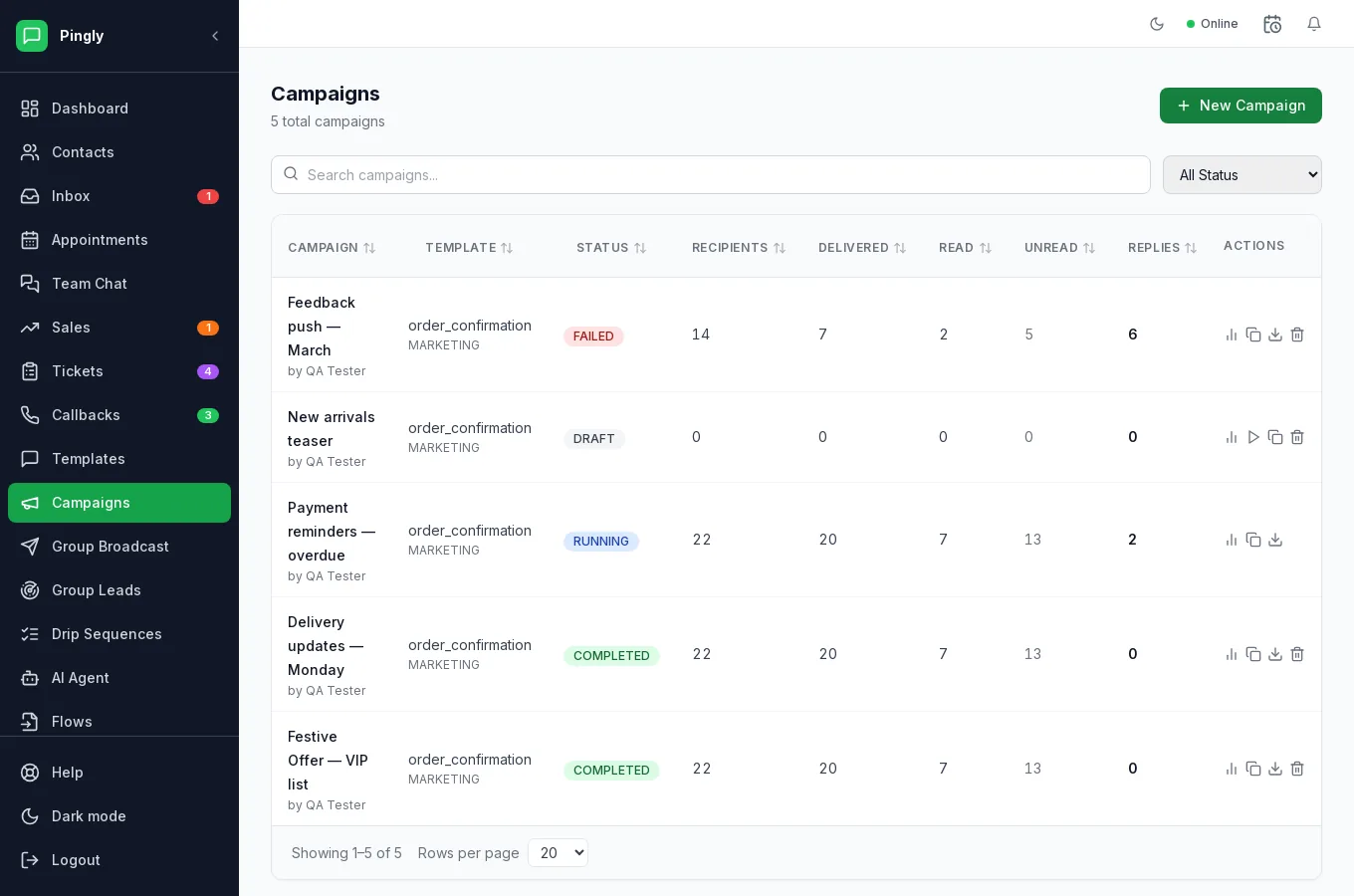
The campaign list carries the figures for every send:
| Column | What it means |
|---|---|
| Recipients | How many the campaign went to after opt-outs were removed. |
| Delivered | Reached the handset. The number that matters — compare it with Recipients. |
| Read | Opened. Only counts recipients with read receipts on, so it always understates. |
| Unread | Delivered but not opened. |
| Replies | People who wrote back. On a marketing send this is the real result. |
A campaign is Draft, Running, Completed or Failed. Open one to see the per-recipient log, which is where to look when a specific customer says they did not get it — delivery failures are usually an invalid number or someone who has never used WhatsApp.
The Message Log shows each recipient and their individual status, which is where to look when a specific customer says they did not get it. Replies arrive in the inbox like any other conversation — a campaign that works will generate real conversations, so make sure somebody is watching.
More in Reach customers at scale
- Message templates: write one Meta will approveVariables, buttons, carousels, approval, and the reasons templates get rejected.
- Group broadcast: message WhatsApp groupsSending to WhatsApp groups from a number connected by QR code.
- Drip sequences: follow up automaticallyMulti-step automated follow-ups, triggers, and reading a failure.
- Group Leads: catch buying signals in WhatsApp groupsThree keyword lists, worked examples, and how a match becomes a lead.