Integrations: Google Sheets, Zoho, Zoom and calls
7 min read
Pingly is rarely the only tool a team uses. These connections stop WhatsApp being the one place information does not reach.
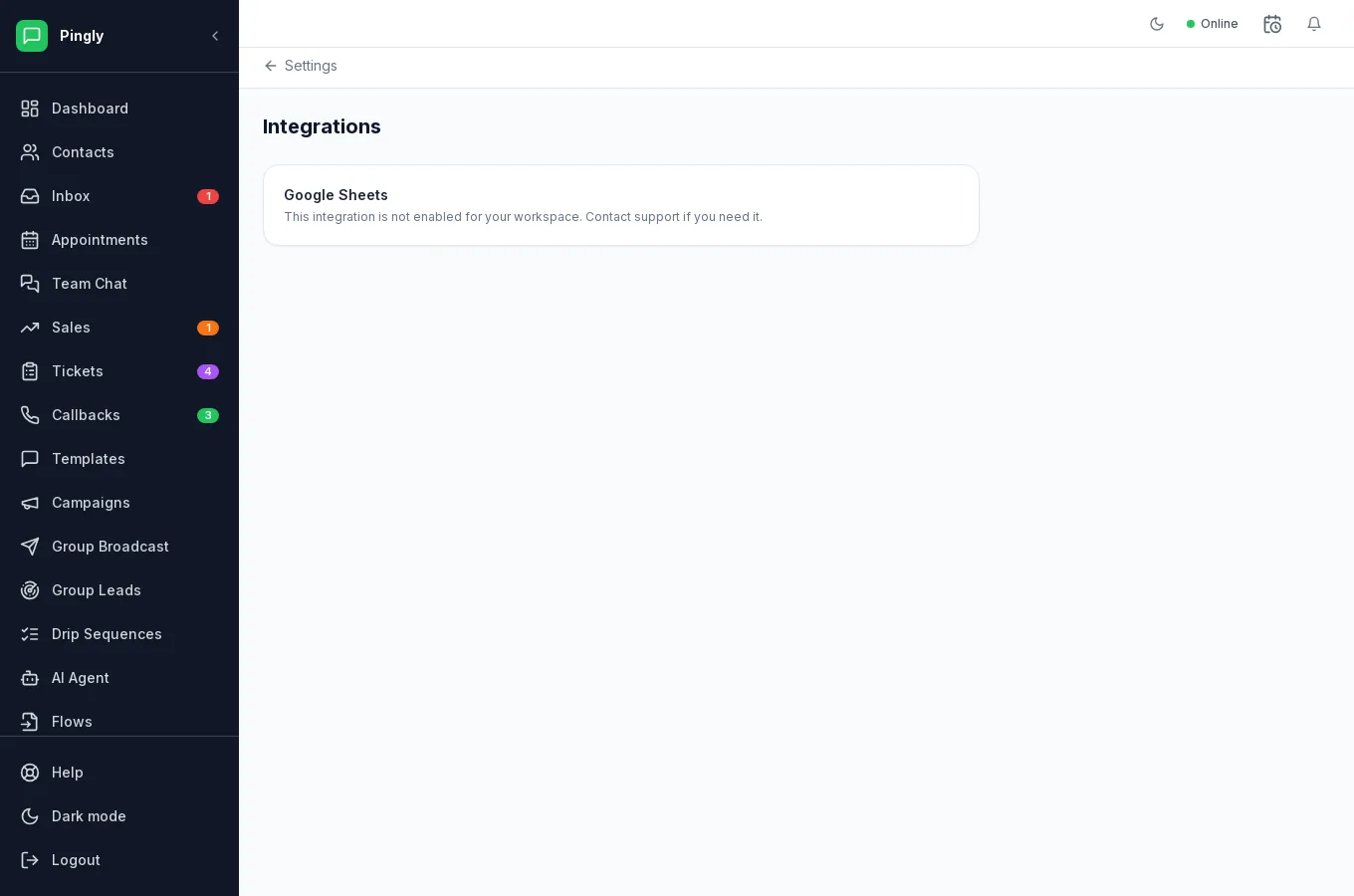
Google Sheets
Keep a spreadsheet and your contact list in step, which is usually the easiest way to work with a team that already lives in Sheets.
- Check it is enabled for your workspaceGoogle Sheets is switched on per workspace. If the screen says it is not enabled for yours, ask support and they will turn it on.
- Connect your Google accountYou are sent to Google to approve access, and back to Pingly afterwards.
- Pick the sheet and map the columnsPhone is required; anything else can map to a contact field or a custom attribute.
Zoho CRM
Two-way sync between Zoho records and Pingly contacts, so a conversation in WhatsApp and a record in the CRM describe the same person. Connect it under Settings → Zoho CRM and authorise Pingly in Zoho.
Zoom
Connect Zoom and an appointment can create the meeting automatically, with the link in the confirmation you send. See Appointments.
Click-to-call
With a telephony provider configured under Settings → Click to Call, you can dial a contact from inside Pingly — from a conversation or from a callback — and the call is placed through your provider and your caller ID.
Anything else
If what you need is not here, the developer API and webhooks cover it: send messages from your own systems, and receive a callback when something happens in your workspace.
More in Administration
- Channels and numbers: managing more than oneRunning several numbers, keeping them healthy, and choosing between them.
- Routing: get each chat to the right personAutomatic assignment rules, rotation, and the fallback when nobody answers.
- Your WhatsApp Business profileThe profile customers see in WhatsApp, edited from inside Pingly.
- The developer API and webhooksAPI keys, sending programmatically, and subscribing to webhooks.