Group broadcast: message WhatsApp groups
5 min read
Group Broadcast sends one message to many WhatsApp groups from a connected number. For trades that run on groups — property, wholesale, travel — it is the difference between posting a listing thirty times and posting it once.
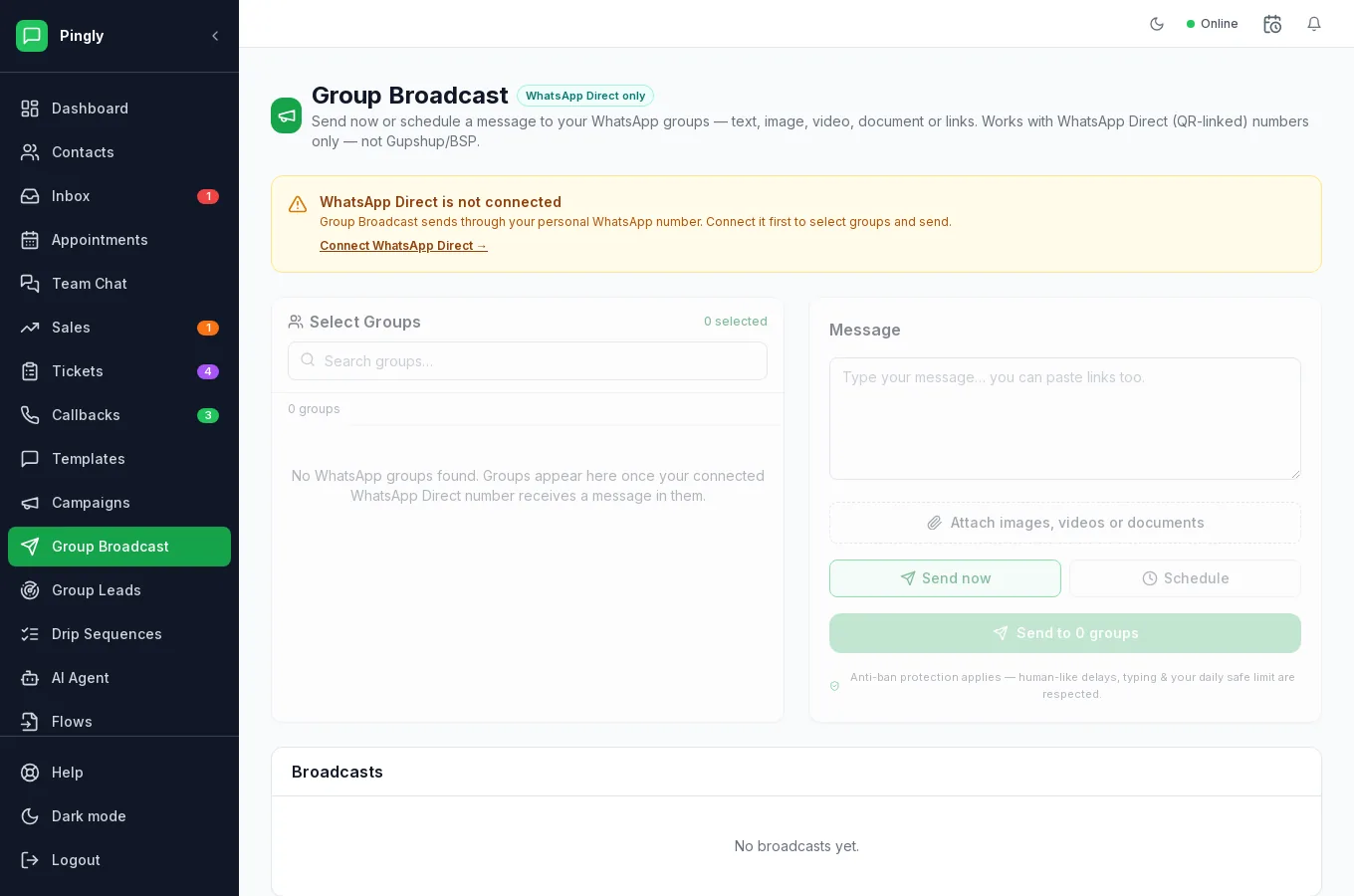
Sending
- Wait for your groups to appearA group shows up once your connected number has received a message in it — Pingly learns the group from the traffic, so a silent group you are a member of will not be listed yet.
- Select the groupsOnly the ones the message genuinely suits. Posting a property listing into an unrelated group is what gets a number reported.
- Write the message and attach mediaFree text — no template approval is involved, because this is not the Cloud API.
- Send now, or schedule itEither way the messages go out spaced apart rather than all at once — the screen says anti-ban protection is applied, meaning human-like delays, typing indicators and your daily safe limit.
Using it without wearing out your number
- Relevance first. Group admins remove numbers that post off-topic, and members report them. That is the real risk, not the sending itself.
- Do not post the same thing repeatedly. Identical messages across many groups in quick succession is the pattern that looks automated.
- Watch for removals. Being dropped from groups is the early warning that you are broadcasting too often.
What comes back
Replies inside a group appear in the Groups tab of the inbox, kept out of the main list so they do not bury your one-to-one conversations. To catch enquiries in those groups automatically, see Group Leads.
More in Reach customers at scale
- Message templates: write one Meta will approveVariables, buttons, carousels, approval, and the reasons templates get rejected.
- Campaigns: send a template to thousandsAudience, template, schedule, send — and what the report actually tells you.
- Drip sequences: follow up automaticallyMulti-step automated follow-ups, triggers, and reading a failure.
- Group Leads: catch buying signals in WhatsApp groupsThree keyword lists, worked examples, and how a match becomes a lead.